Admin Console
The Admin Console is where an administrator configures Soterre PBI Analyzer. It does not show analysis results — findings are read in Soterre.
Reaching it
The console runs on the analyzer server at http://localhost:5001. It binds to loopback, so it is reachable only from a session on that server.
Open it with Open Admin Console in the launcher, then sign in with the admin password. If no password has been set, the sign-in page tells you to create one in the launcher first — see Install the service.
A session lasts 8 hours and is extended while you use the console. Sign out in the header ends it.
The header links to five pages — Connections, Capacity, Custom flags, Health Score and API key — plus a Home page.
Connections
A connection is one Power BI Service Principal in one Microsoft Entra ID tenant. When Soterre requests an analysis, it names the connection, and PBI Analyzer downloads the report with that Service Principal's credentials.
The page lists saved connections with Name, Tenant ID, Client ID, Secret — where set means a client secret is stored — and Capacity Metrics.
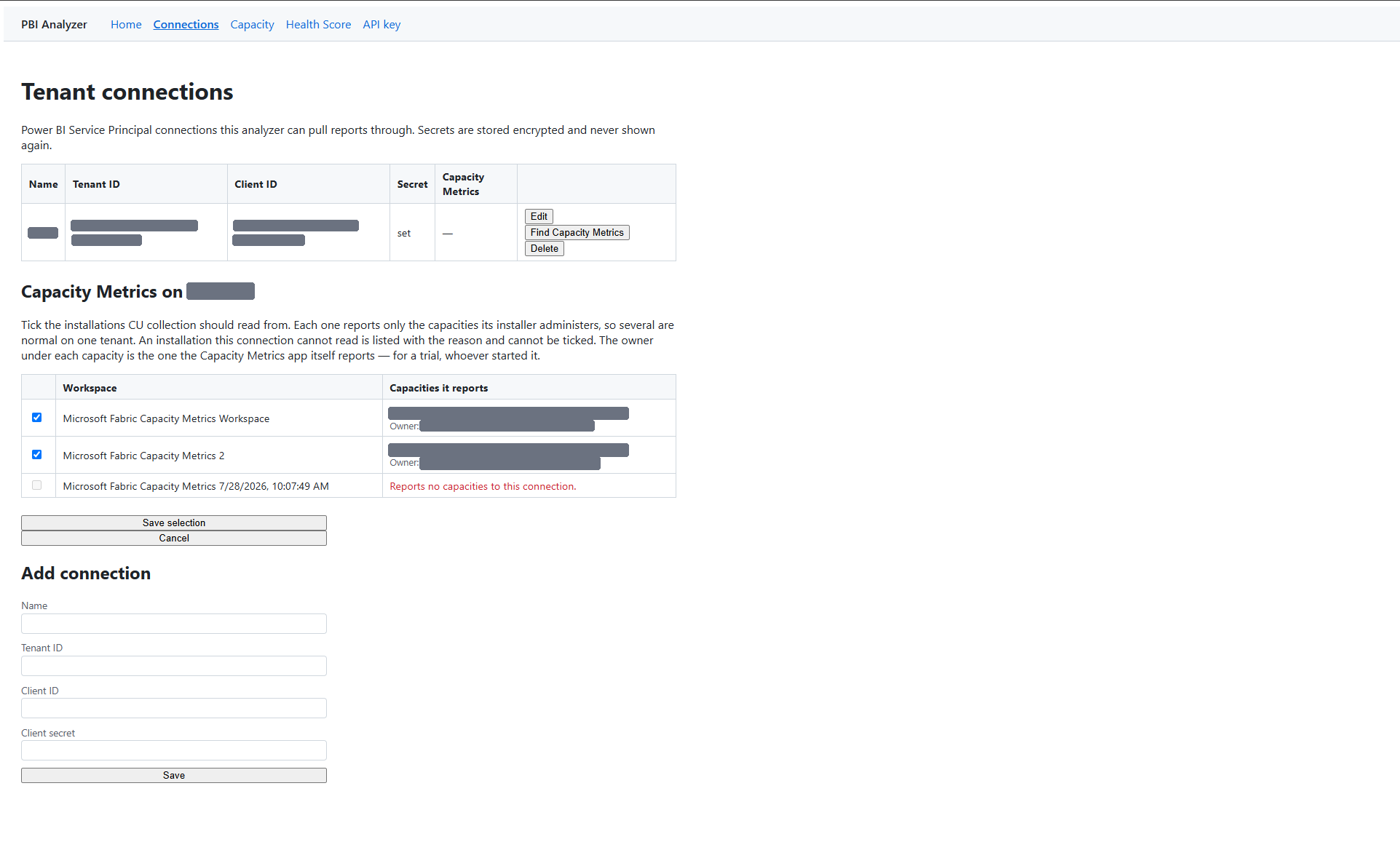
Creating the app registration and finding these values is covered in full, with screenshots, in Tenant connections.
| Field | Value |
|---|---|
| Name | Identifies the connection in Soterre. Leave it blank and Soterre lists the connection by its id instead |
| Tenant ID | Directory (tenant) ID |
| Client ID | Application (client) ID |
| Client secret | The secret value |
The console does not check credentials when you save
It saves exactly what you type. It does not check for empty fields, does not test the credentials, and has no test button. A mistake surfaces the first time the connection is used — when you click Find Capacity Metrics, or when Soterre first analyzes a report through it:
Connection '<id>' is missing a tenant id, client id, or client secret.Azure AD authentication failed for the Service Principal: <message>Power BI export failed (<status> <reason>) for report <id> in workspace <id>.
Check the values before saving, then analyze one report from Soterre to confirm.
Editing. Click Edit and the values load into the form. To keep the stored secret, leave Client secret blank; to replace it — after the Azure secret expires, say — enter a new value.
Deleting. Delete removes the connection immediately, without asking for confirmation. Analyses using it then fail with Connection '<id>' was not found.
Choosing which Capacity Metrics installations to read
Find Capacity Metrics on a connection lists the Microsoft Fabric Capacity Metrics installations that connection can see, and you tick the ones CU collection should read from.
Each installation reports only the capacities its own installer administers, so several on one tenant is normal and ticking more than one is expected. Under each capacity is the owner the Capacity Metrics app itself reports — on a trial, whoever started it.
An installation the connection cannot read is listed with the reason and cannot be ticked. An installation that reports no capacities to this connection was read fine: it has not been set up yet, or whoever installed it administers no capacity.
Save selection stores the choice against the connection, and the Capacity Metrics column then shows it.
How secrets are stored. The client secret is encrypted on save and never shown again, in the console or through the API. Name, Tenant ID and Client ID are stored as plain text. See Security and privacy.
API key
Soterre authenticates with an API key, also called the integration token. There is one key for the whole installation, shared by every connection.
The page reports either A token is configured (issued <date and time>). or No token configured yet. Soterre cannot call this service until one is generated.
Generate token produces a token beginning sk-, shown once in a highlighted box.
The token is shown exactly once
Only a hash is stored, so the console cannot show it again. Copy it into Soterre straight away — see Connect Soterre. If you lose it, rotating is the only way forward.
Rotate token generates a new one and the previous token stops working immediately. There is no overlap window: until the new token is entered in Soterre, the analyzer refuses Soterre's requests with 401 Missing or invalid bearer token. Rotate when you can update Soterre straight away, or when the old token has to be revoked because it was exposed.
Capacity
The Capacity page runs and monitors CU collection. The service reads CU usage once a day from the Capacity Metrics installations ticked on each connection, and keeps it far longer than Fabric does.
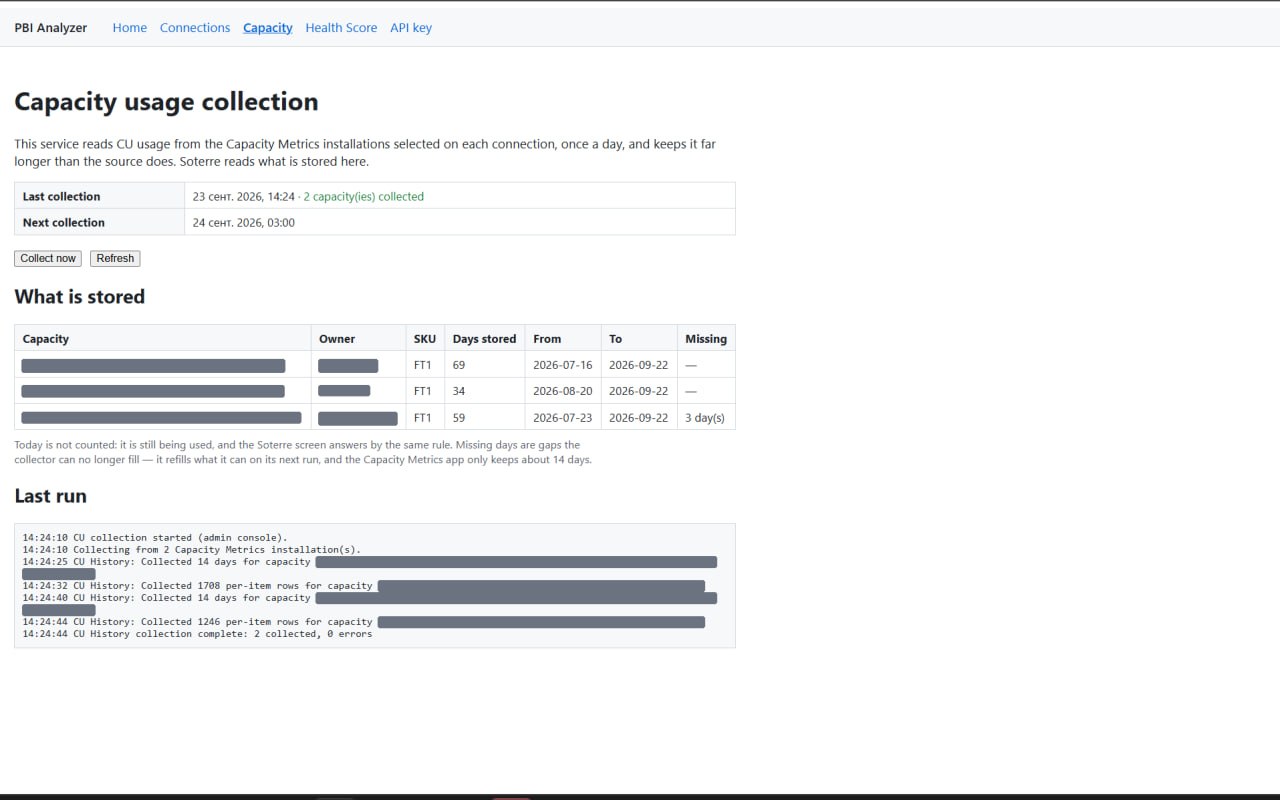
At the top, when the last collection ran and how many capacities it covered, and when the next one is due. Collect now runs one immediately instead of waiting.
What is stored lists each capacity the analyzer holds history for:
| Column | |
|---|---|
| Capacity, Owner, SKU | Which capacity, and who the Capacity Metrics app reports as its owner |
| Days stored | How many days of history the analyzer holds |
| From, To | The span it covers |
| Missing | Days inside that span with no data |
Last run shows the log of the most recent collection — which installations it read, how many days and per-item rows it collected per capacity, and how many errors it hit. This is where to look when a capacity stops appearing.
Health Score settings
The Health Score page sets the weights and thresholds that every new analysis is scored with. What they mean is described in Health Score.
The table lists the five categories with:
- Threshold — the value at which the category has no points left. For Unused model objects this is a percentage of the model, 1 to 100.
- Weight — how the 100 points are shared out.
- Points — what the category is worth under the current weights. Updates as you type.
Total must come to 100. Because points are rounded, some weight combinations give 99 or 101; the total then turns red and Save stays unavailable until you adjust a weight.
Above the table: the settings revision and when the settings last changed.
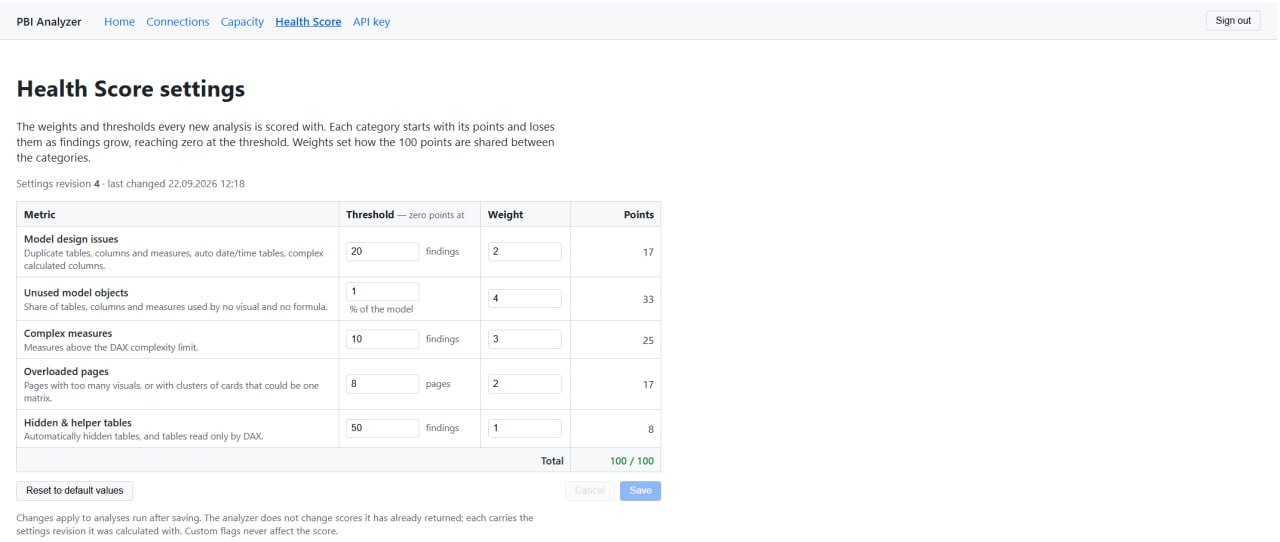
The values shown are one installation's own settings. What the analyzer ships with is in Health Score.
Reset to default values fills the form with the defaults and changes nothing until you save.
Custom flags
This page holds your own flags alongside the nine that ship with it.
The nine shipped flags are marked DEFAULT and cannot be deleted. Their Enabled toggle does not take effect yet. Your own flags can be edited, disabled and deleted freely.
A flag is a target type, a set of conditions and a message. New custom flag opens the editor; Edit reopens an existing one.
Two things to know before you start:
- Flags apply to every analysis this service runs — every tenant, every report.
- Changes take effect on the next analysis. Results already produced are not re-evaluated.
Custom flags do not affect the Health Score, so a team's own flags cannot move a number that is meant to be comparable between teams.
Writing one, with the full list of properties you can test: Custom flags.