Tenant connections
A connection is one Service Principal the analyzer uses to read a Power BI tenant. It holds a Tenant ID, Client ID and Client secret, and it is the only credential the analyzer ever uses against your tenant — Soterre passes report ids, never credentials.
A Service Principal is a service account: it automates access without anyone's personal credentials, and it keeps working when the person who set it up leaves.
Who can do which step
Most organizations split these roles, so it is normal not to be able to do all of this yourself.
| Step | What | Who can do it |
|---|---|---|
| 1–3 | Azure app registration, API permissions, client secret | Azure admin (Application Administrator or Global Administrator) |
| 4 | Security group | Azure admin |
| 5 | Power BI Admin Portal tenant setting | Fabric Administrator or Power BI Administrator |
| 6 | Add the Service Principal to workspaces | Workspace admin — no tenant admin needed |
| 7 | Add the connection in the Admin Console | Analyzer administrator — access to the analyzer server and the admin password |
Register the application
Create the Azure AD application
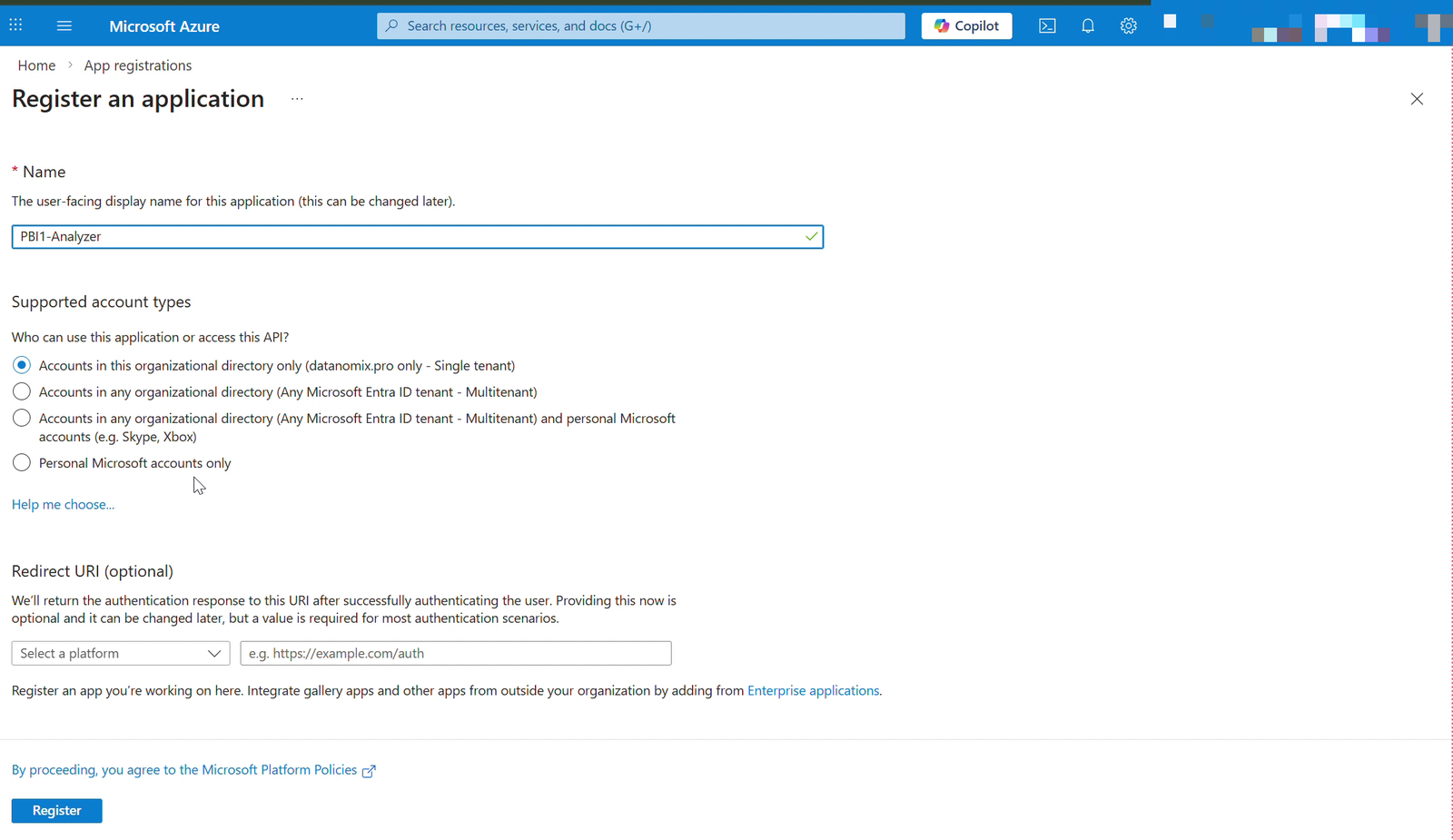
In the Azure portal, search for Microsoft Entra ID, open App registrations, and click + New registration.
| Field | Value |
|---|---|
| Name | PBI-Analyzer, or any descriptive name |
| Supported account types | Accounts in this organizational directory only |
| Redirect URI | Leave blank — this is a client-credentials app with no interactive sign-in |
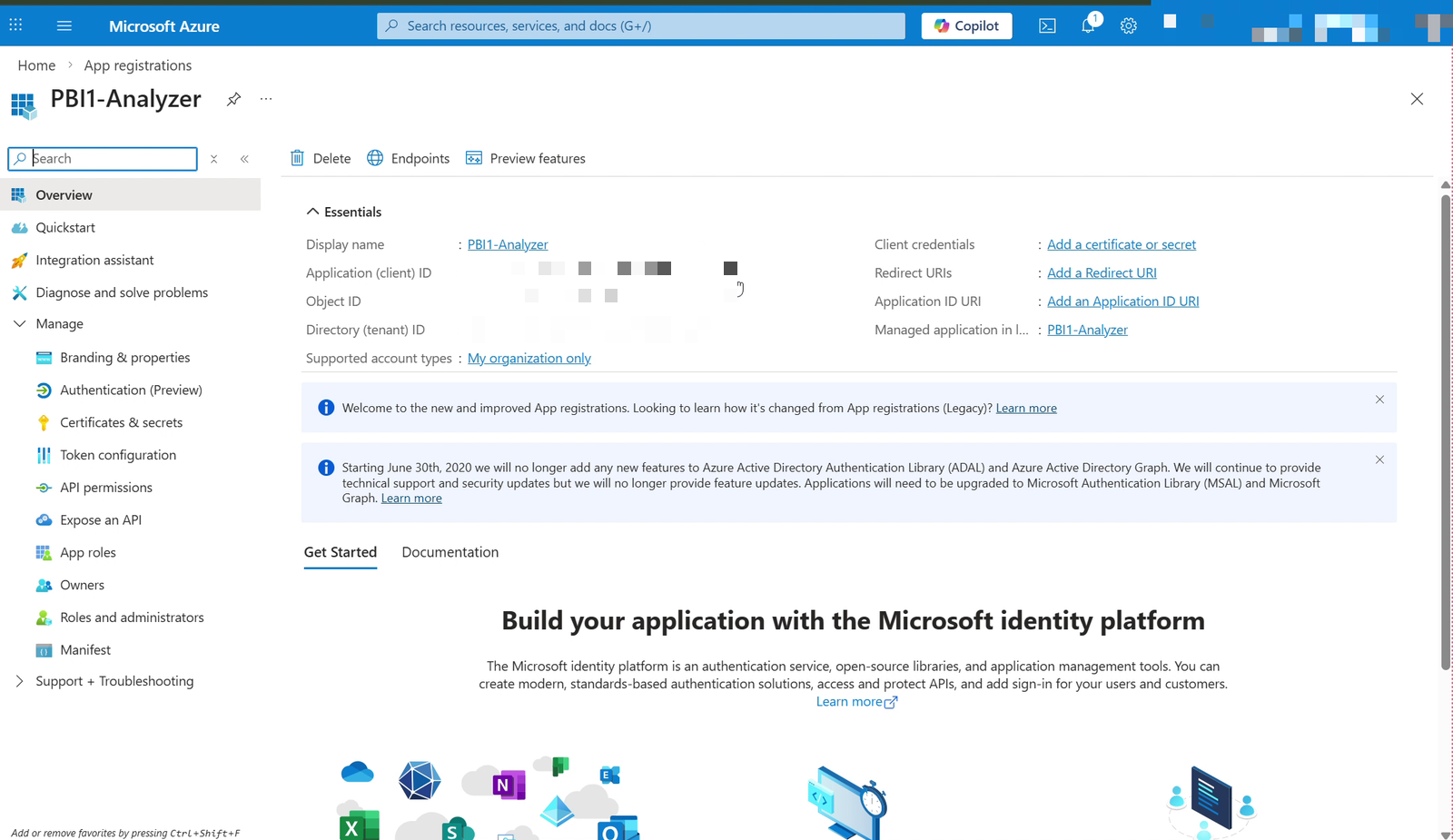
On the Overview page that follows, copy the Application (client) ID and the Directory (tenant) ID. You need both in step 7.
Add API permissions
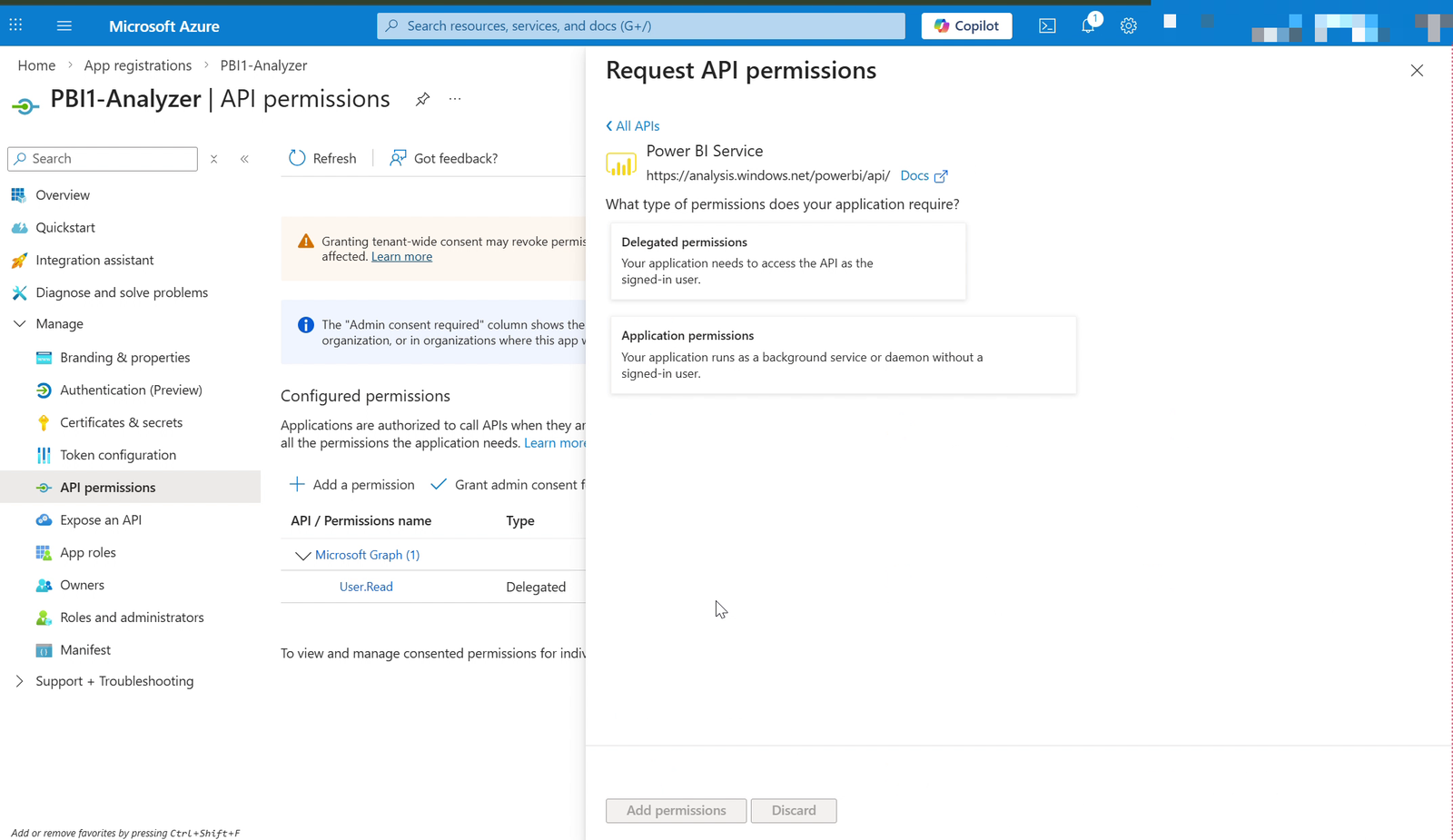
Open API permissions → + Add a permission → Power BI Service, and choose Application permissions — not Delegated.
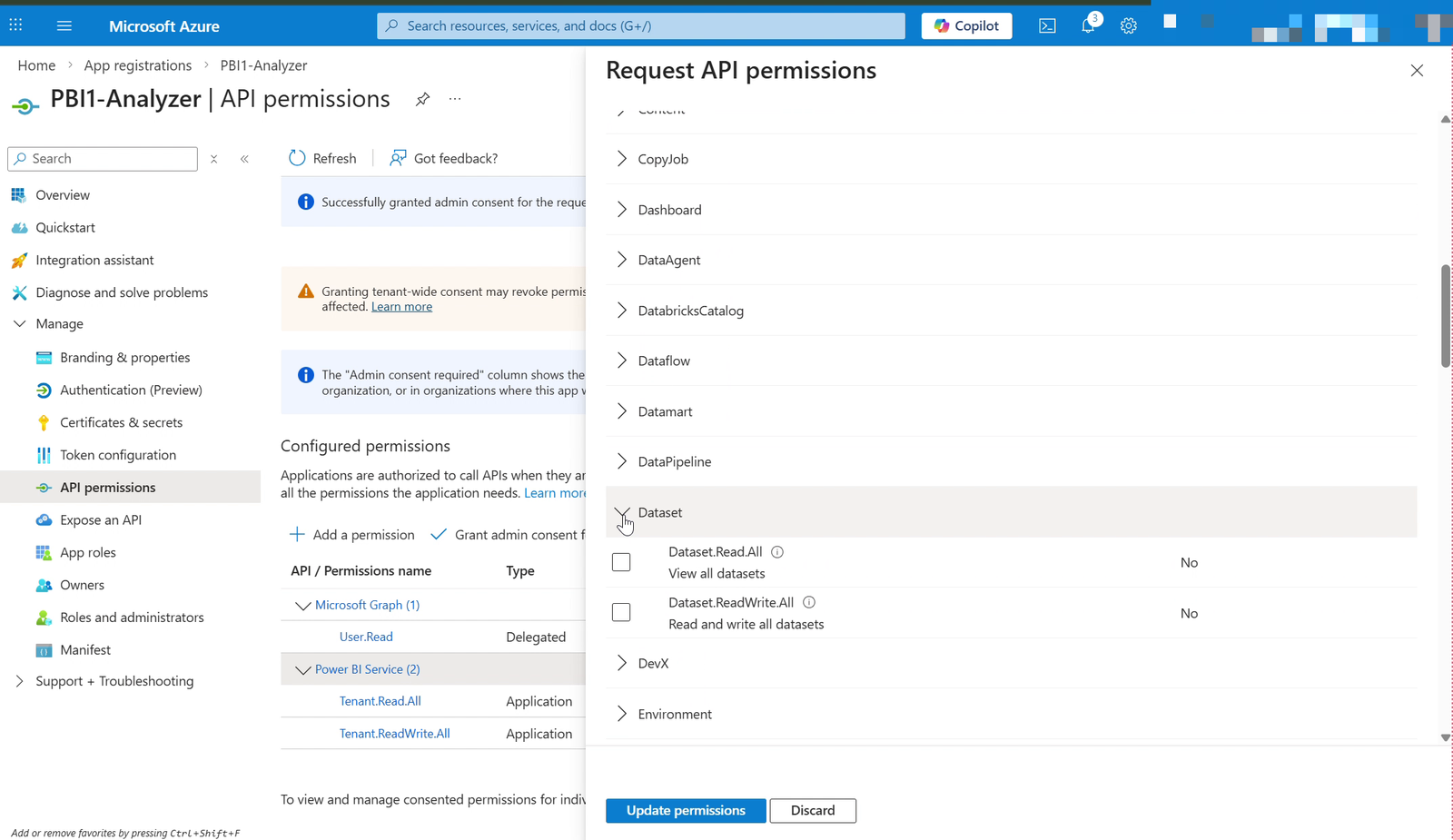
Add the read permissions:
| Category | Permission |
|---|---|
| Tenant | Tenant.Read.All |
| Capacity | Capacity.Read.All |
| Workspace | Workspace.Read.All |
| Dataset | Dataset.Read.All |
| Report | Report.Read.All |
Grant read permissions only
The analyzer never writes to your tenant — every call it makes is a GET, apart from the DAX query endpoint, which is read-only despite being a POST. It does not need Tenant.ReadWrite.All or any other write permission, and granting one gives a service account standing write access to the whole tenant for no benefit.
Note also that these permissions are not what grants access to report content. That comes from the tenant setting in step 5 plus workspace membership in step 6.
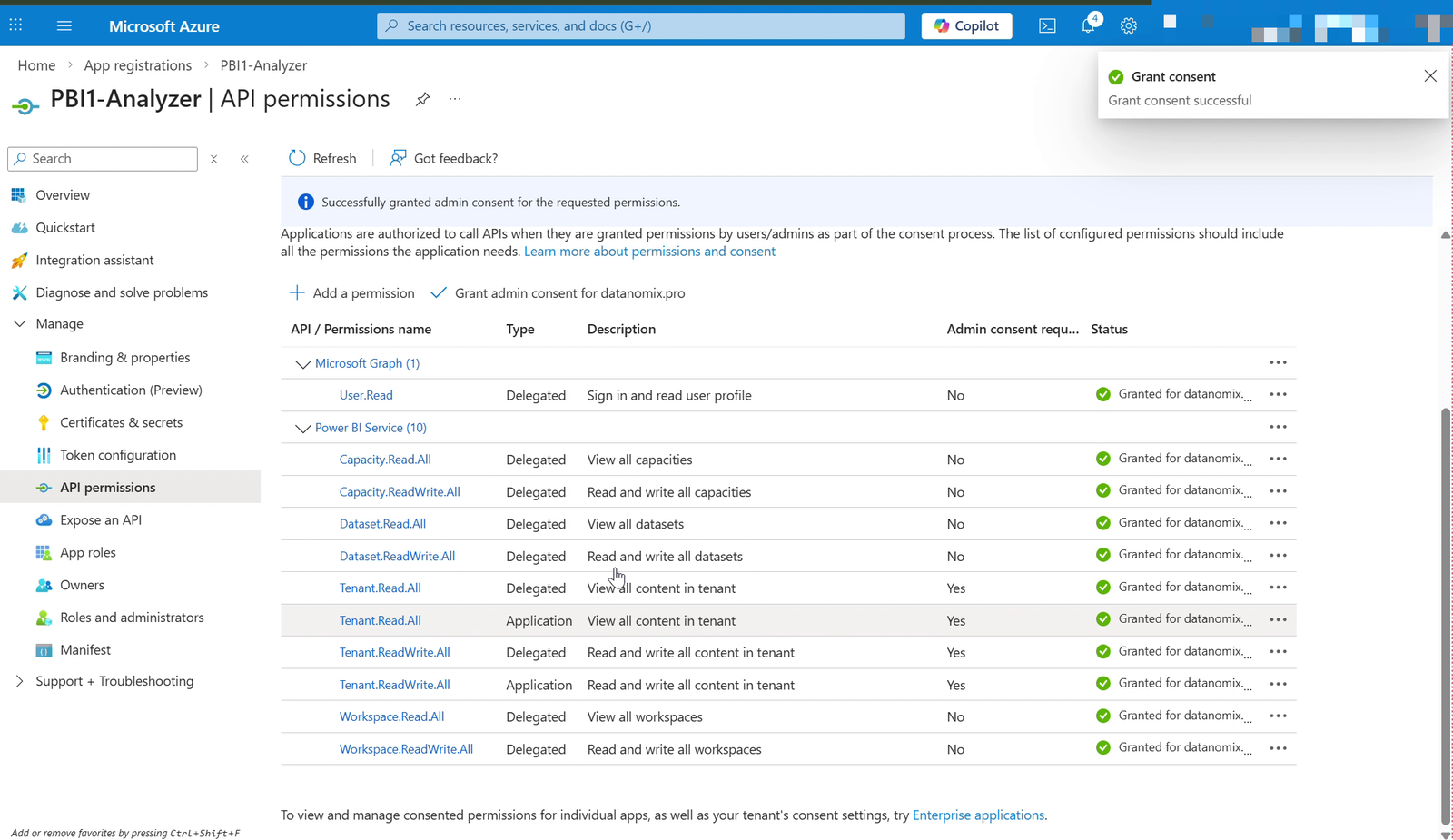
Then click Grant admin consent for <your organization> and confirm.
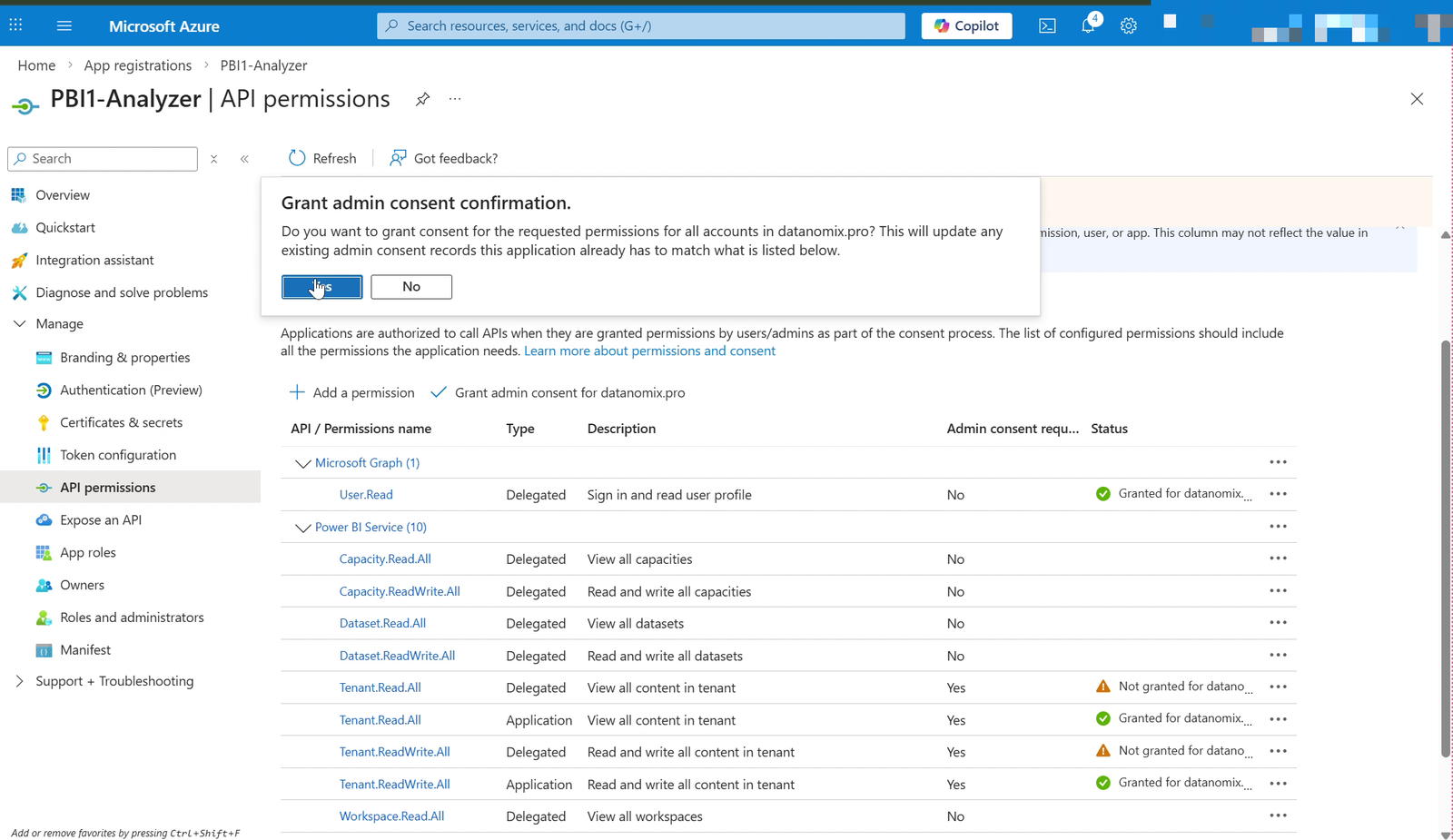
Without consent the application does not work. After it succeeds every permission shows a green check.
Create a client secret
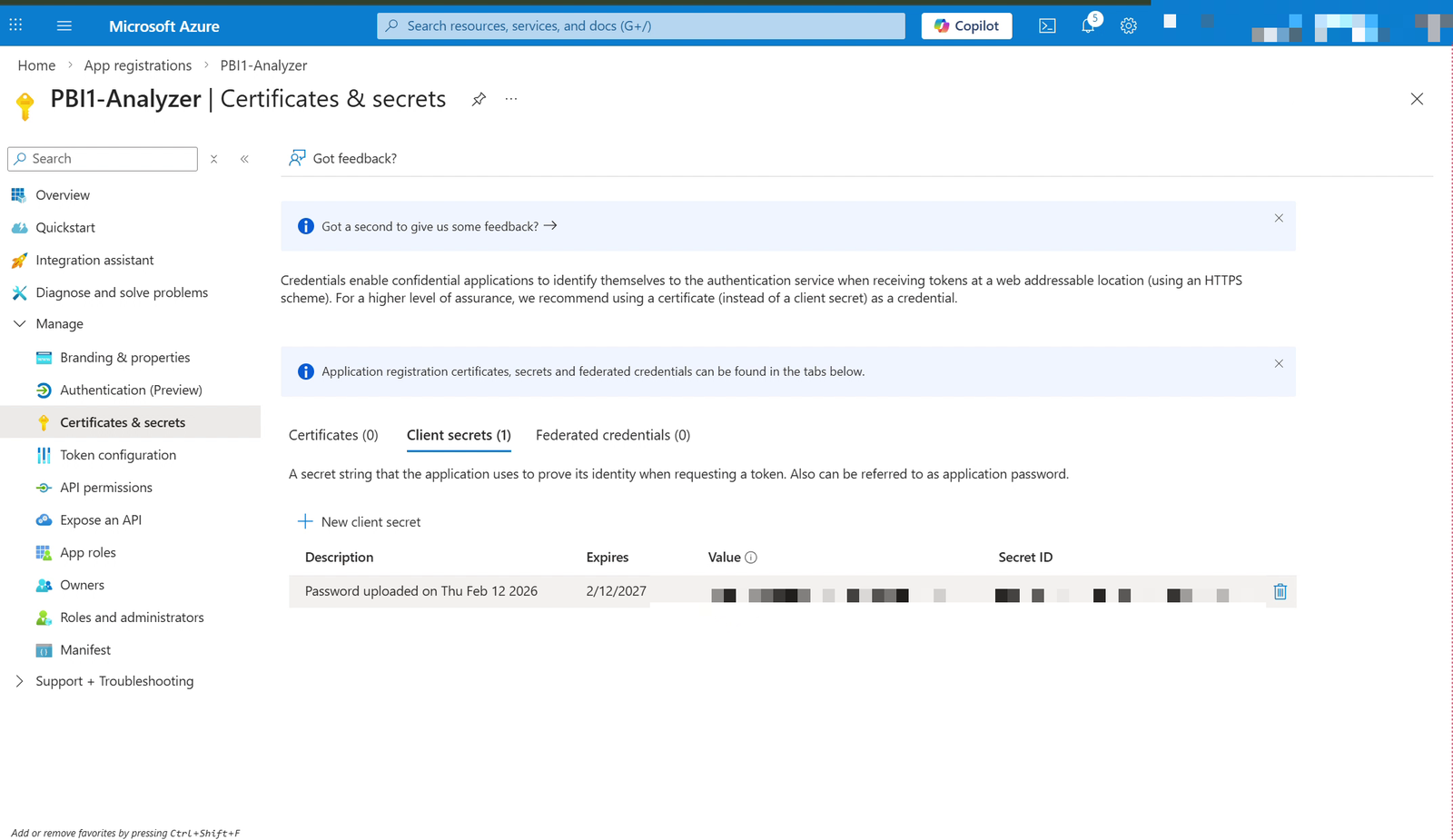
Open Certificates & secrets → Client secrets → + New client secret. Give it a description and an expiry you will actually track — an expired secret shows up as every analysis failing at once.
The secret is shown once
Copy the value from the Value column — not Secret ID — before leaving the page. If you lose it, the only way forward is to create a new secret.
Create a security group
A security group lets step 5 enable the Power BI API setting for this Service Principal alone. That is the difference between one service account using the APIs and every application in the tenant being allowed to.
In Microsoft Entra ID → Groups → + New group, create a Security group, set membership type Assigned, and add the application you registered in step 1 as a member.
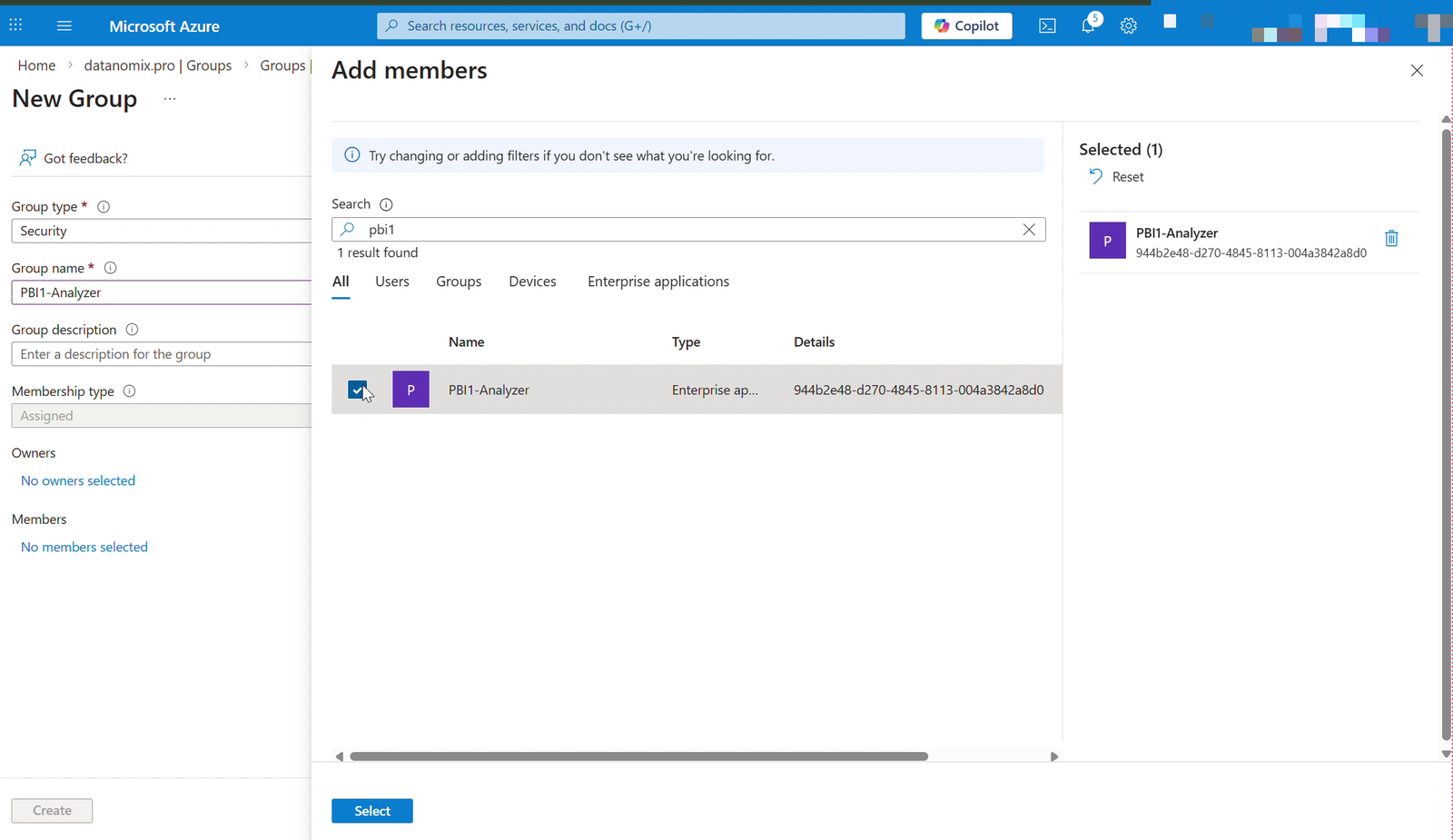
If you cannot find the Service Principal by name, search by its Application (client) ID, or check Enterprise applications first to confirm it exists.
Enable service principals in the Power BI tenant
In app.powerbi.com, open the gear icon → Admin portal → Tenant settings, and find Allow service principals to use Power BI APIs. The exact wording varies between Admin portal versions.
Enable it, set Apply to: Specific security groups, add the group from step 4, and click Apply.
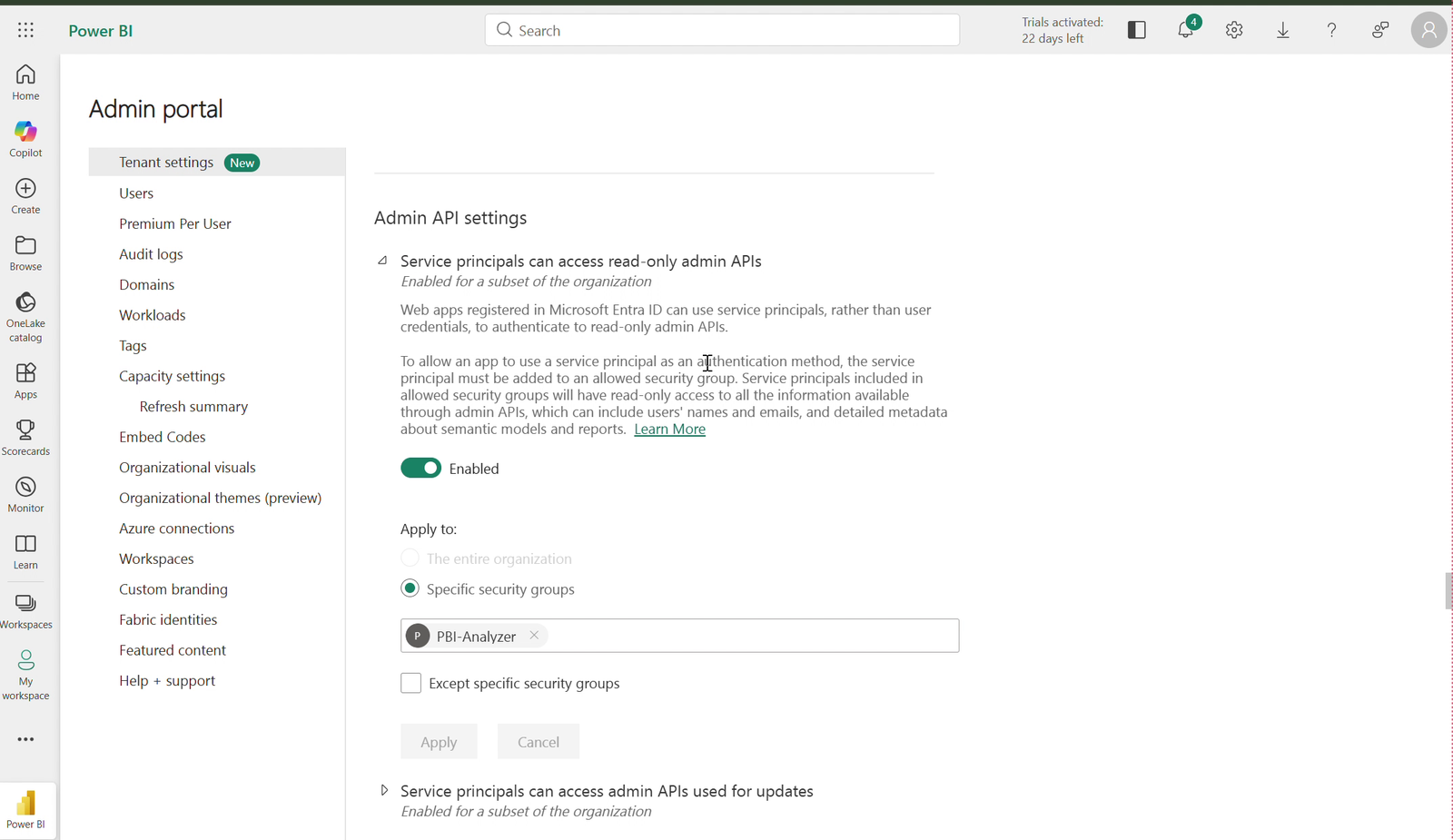
Without this step everything still authenticates and the tenant simply looks empty — no workspaces, no reports. It is the most common cause of a connection that "works" but finds nothing.
Tenant setting changes can take up to 15 minutes to take effect.
Admin APIs are not needed
The analyzer does not call the Power BI admin APIs, so the admin-API tenant settings can stay off.
Add the Service Principal to each workspace
This is the step people miss. The analyzer downloads each report through the Power BI export API, and a Service Principal can only export from workspaces it has been added to. Tenant-level permissions do not substitute for it.
For each workspace you want analyzed, open it in Power BI, click Manage access → + Add people or groups, and add the Service Principal.
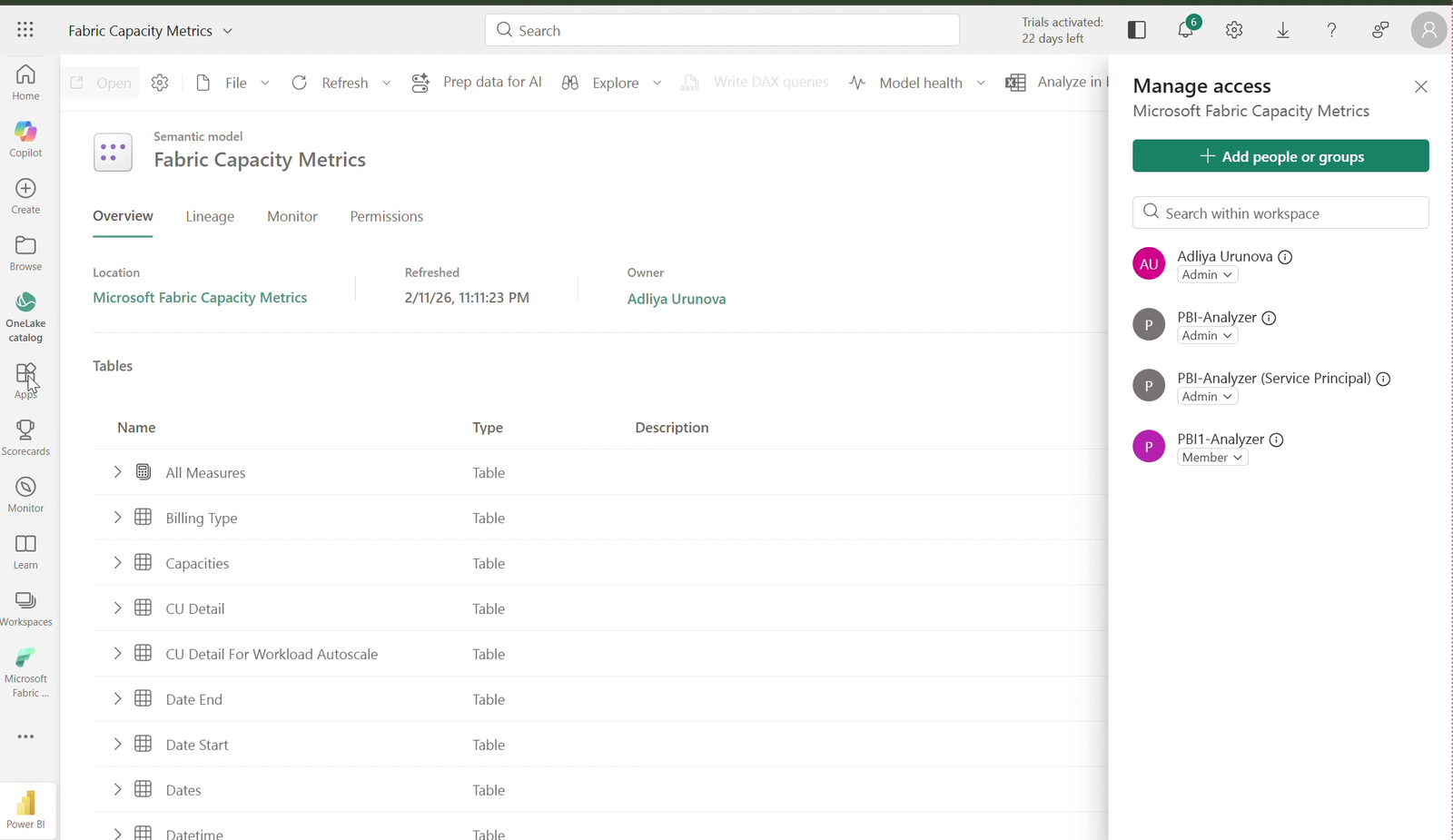
| Role | |
|---|---|
| Member | Enough to read and export. Recommended |
| Admin | Also works, and grants more than is needed |
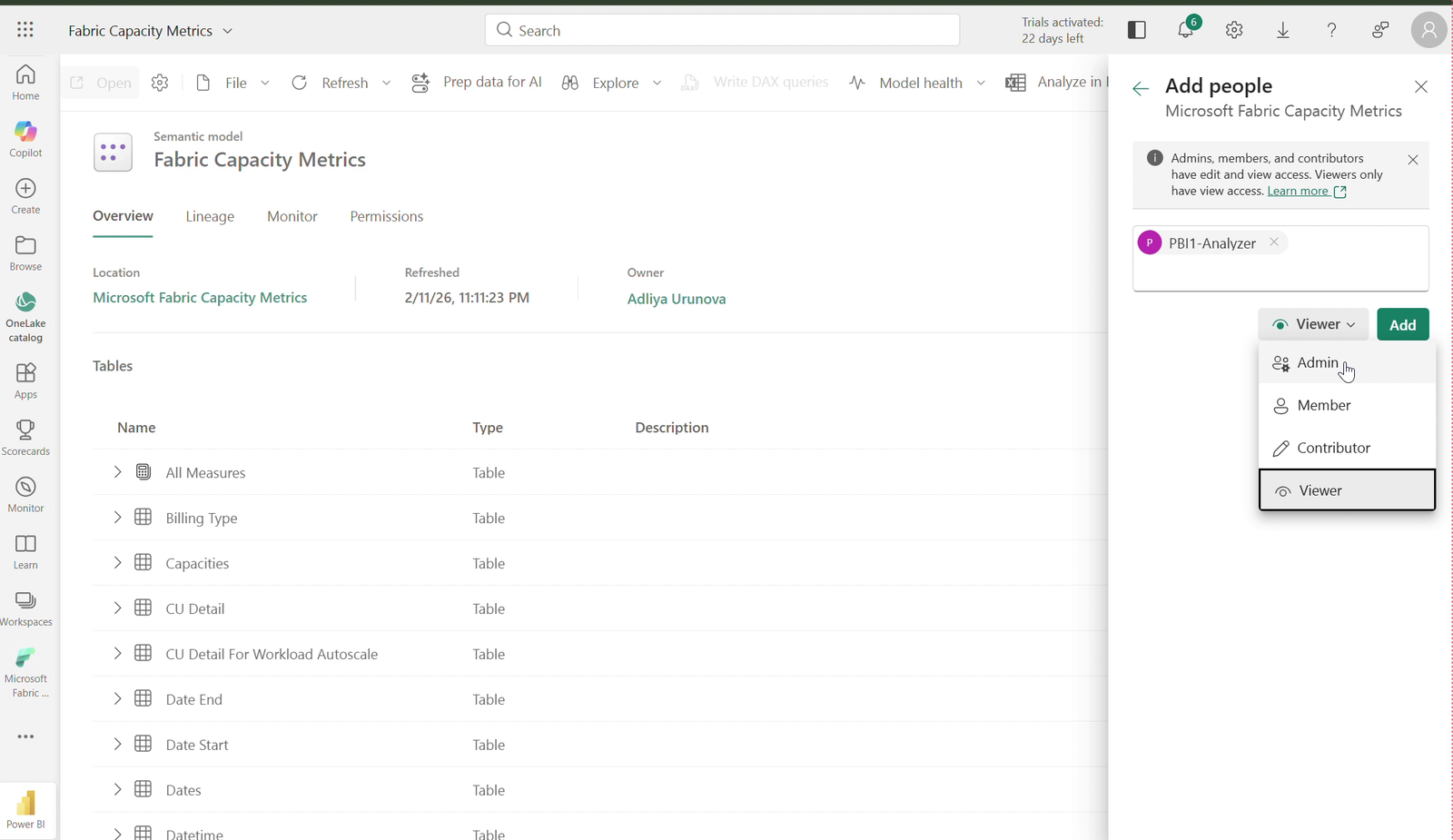
Any workspace admin can do this — it needs no tenant admin.
Add the connection in the Admin Console
On the analyzer server, open the launcher and click Open Admin Console, then sign in. If no admin password exists yet, create one first — there is no web setup page.
Go to Tenant connections and fill in:
| Field | Where it comes from |
|---|---|
| Name | Your choice. Soterre lists the connection by this name, so name it for the tenant or environment |
| Tenant ID | Directory (tenant) ID, from step 1 |
| Client ID | Application (client) ID, from step 1 |
| Client secret | The secret Value from step 3 |
Click Save. The connection appears in the list with its Secret column showing set.
The console does not test the credentials
It saves what you type, including an empty field or a wrong value. Mistakes surface only when Soterre first analyzes a report through the connection. See Troubleshooting.
Next: connect Soterre to the analyzer.
What the connection is used for
The analyzer authenticates with the client-credentials flow against login.microsoftonline.com, requesting the https://analysis.windows.net/powerbi/api/.default scope, and calls the Power BI REST API at https://api.powerbi.com/v1.0/myorg:
| Call | Why |
|---|---|
GET /groups | List workspaces |
GET /groups/{id}/reports, /datasets | List analyzable content |
GET /groups/{id}/reports/{id}/Export | Pull the report to analyze |
POST /groups/{id}/datasets/{id}/executeQueries | Read the model schema when export is blocked, and read the Capacity Metrics model |
Every one of these is a read.
Warnings
Export can be blocked, and then DAX analysis goes quiet
The analyzer prefers to export the report, because the exported .pbix carries the binary model, and the binary model carries the DAX expression text that the complex DAX flags read.
When export is not permitted, it falls back to reading the model schema through INFO.VIEW DAX queries. That fallback works — tables, columns, measures and every model flag still come back — but Power BI returns a null expression for every measure when the caller is a service principal. No expression text means nothing to score, so complex-dax findings come back empty.
And an empty result there looks exactly like a report with simple DAX. If DAX complexity matters to you, make sure export succeeds: the tenant's download/export settings must permit it, and the Service Principal needs enough rights on the workspace.
Live-connected (thin) reports carry no model
A report connected live to a shared semantic model exports as a "thin" .pbix that only points at a remote dataset. The analyzer detects this and falls back to the INFO.VIEW schema, with the same null-expression consequence. The report layout is still read, so unused-object detection works normally.